Templates
With preconfigured Templates, you can set up predefined models to manage recurring access settings and time filters for individual users.
Simplify Access Management with Templates
With preconfigured Templates, you can set up predefined models to manage recurring access settings.
To activate this feature, follow the procedure described on the main [“Additional Features”](https://docs.labkey.io/en/docs/plugin/) page.
Creating a Template
- In the right-hand menu of your panel, go to “Users” and select “Templates” from the dropdown.
- Click the green “Add New” button.
- Enter a name to identify your template and provide a brief description.
- Select the LabKeys where you want the users to have access.
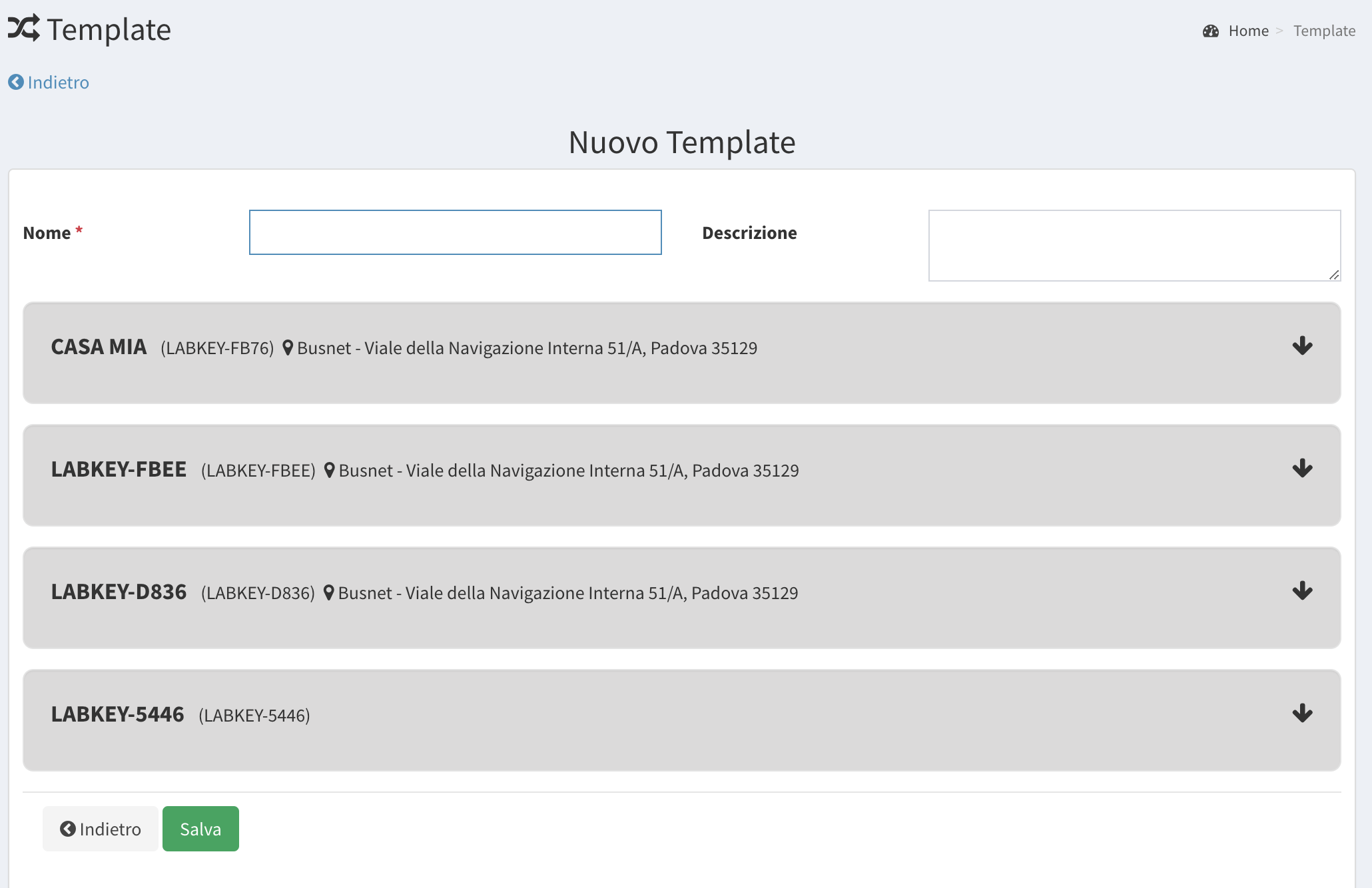
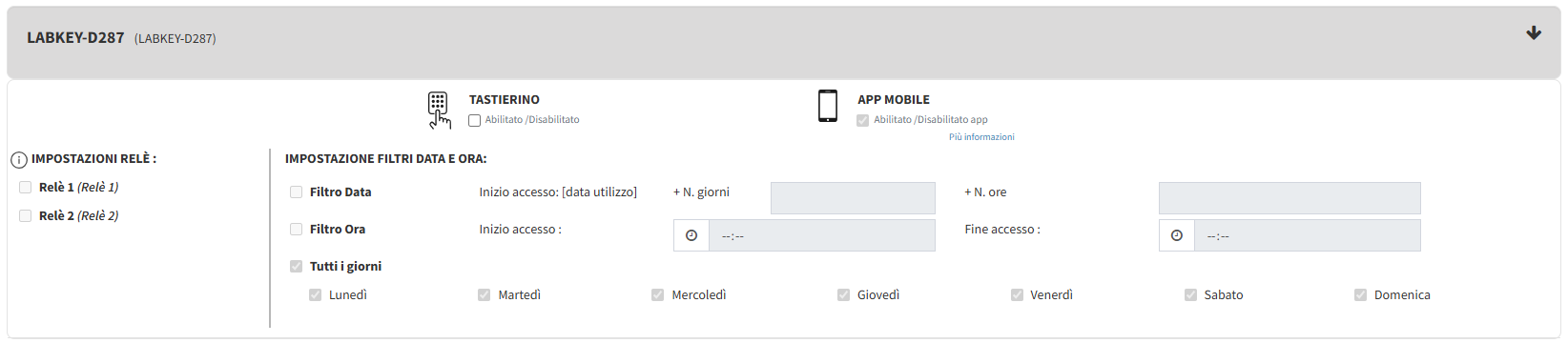
Choose the relays you want to activate.
Set time filters to allow users access according to specific criteria, or select the date when assigning the template to the user. The template’s date filter lets you set the user’s access starting from a specific date and time, defining a duration in days or hours.
ATTENTION: the “every day” filter must generally always be selected, even when you want to set a date or time filter.
- Once all access parameters are configured, click “Save” at the bottom.
Assigning a Template to a User
- From the left menu, go to “Users” and open the “User List.”
- Click the green “Add New” button at the top-left and complete the user’s personal information as described in section 3.4 Adding a New User.
- Click “Select Template.”
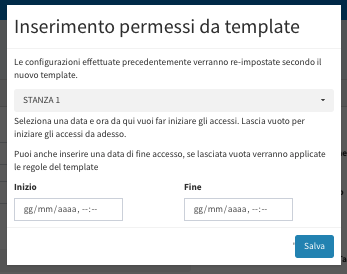
- Choose the template to assign to the user from the dropdown and set the start date and time for the template’s validity. The relay and time filter fields will be filled automatically—just click the green “Save” button at the bottom.