Adding NFC Keys
Flexible NFC Key Integration
To activate this feature, follow the procedure described on the main [“Additional Features”](https://docs.labkey.io/en/docs/plugin/) page.
Easily and flexibly manage the integration of NFC keys within your system. You can add them manually or use a compatible scanner to enter third-party NFC keys, even if not purchased directly from LabKey.
Note: they must be compatible with our devices, meaning Mifare Classic 1K based on ISO/IEC 14443 A/B 13.56 MHz.
Contact us to find out which NFC desktop reader is compatible.
Key Benefits
- Wide compatibility: integrate NFC keys from different suppliers.
- Full control: manage the registration, authentication, and assignment of keys securely.
- Intuitive configuration: the interface lets you quickly associate each key with a user profile or specific access permissions.
How to Add an NFC Key
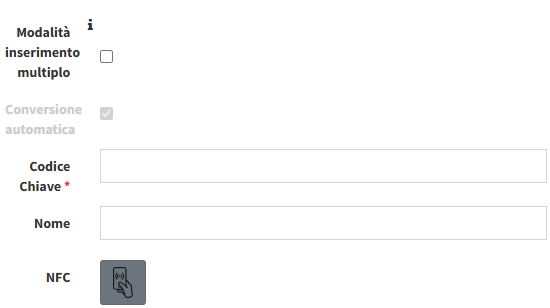
Before performing this operation, this feature must be activated and you must have an NFC desktop reader - RFID Mifare Classic 1K.
Once this feature is activated, in your Manage panel, in the “Keys” section, an “Add New” button will appear at the top left (next to the “Keys” title).
- Click “Add New”.
ATTENTION: if you need to register more than one key, you can check the “multiple entry” option and quickly save NFC keys just by passing them over the reader.
- Place the cursor in the “key code” field.
- Type the name you want to give your NFC key.
- Click the icon next to the “NFC” section so the card’s UID (read by the desktop reader) is converted into an encrypted code compatible with our software, or check the “Automatic conversion” option instead.
- Click the green “Save” button or “Save & Add Another”.
To then assign the NFC key to a user, learn how in the dedicated section on pairing an NFC gadget.