Multi-Operator
The Multi-Operator feature lets you manage your facility in a simple, collaborative way, even in complex and distributed environments.
Create additional users in the control panel, assigning each one permissions limited to specific functions, such as enabling users, viewing data, and, in selected cases, creating new users.
To activate this feature, follow the procedure described on the main [“Additional Features”](https://docs.labkey.io/en/docs/plugin/) page.
Each sub-operator user created with this feature can access the Manage Panel with the privileges granted by the role assigned to them.
Only the Admin operator can work across all areas of the panel, with full viewing, creation, and editing rights.
Creating the sub-operator’s role
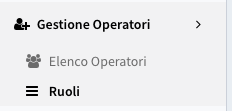
From the left menu, select “Operator Management” and click “Roles”.
Click “Add New” and give the role a name.
For each area of the Manage Panel, select the privilege to grant for that role.
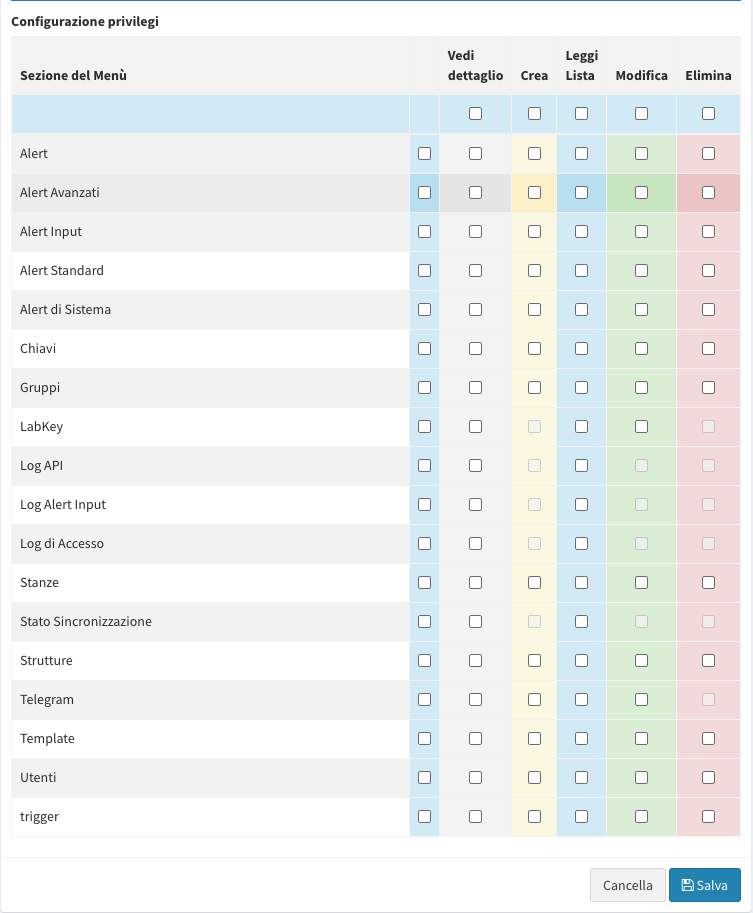
Click “Save”.
Creating the sub-operator
From the left menu, select “Operator Management” and click “Operator List”.
Click “Add New” at the top.
Enter the name, email, and facility you want to assign to the operator. Note: a sub-operator can also have access to more than one facility.
Assign a privilege role.
Customize the default messages for this sub-operator (email, WhatsApp, SMS).
ATTENTION: the sub-operator can also change this information from within their own profile.
Choose the default language for the sub-operator’s messages and panel.
ATTENTION: the sub-operator can also change this information from within their own profile.
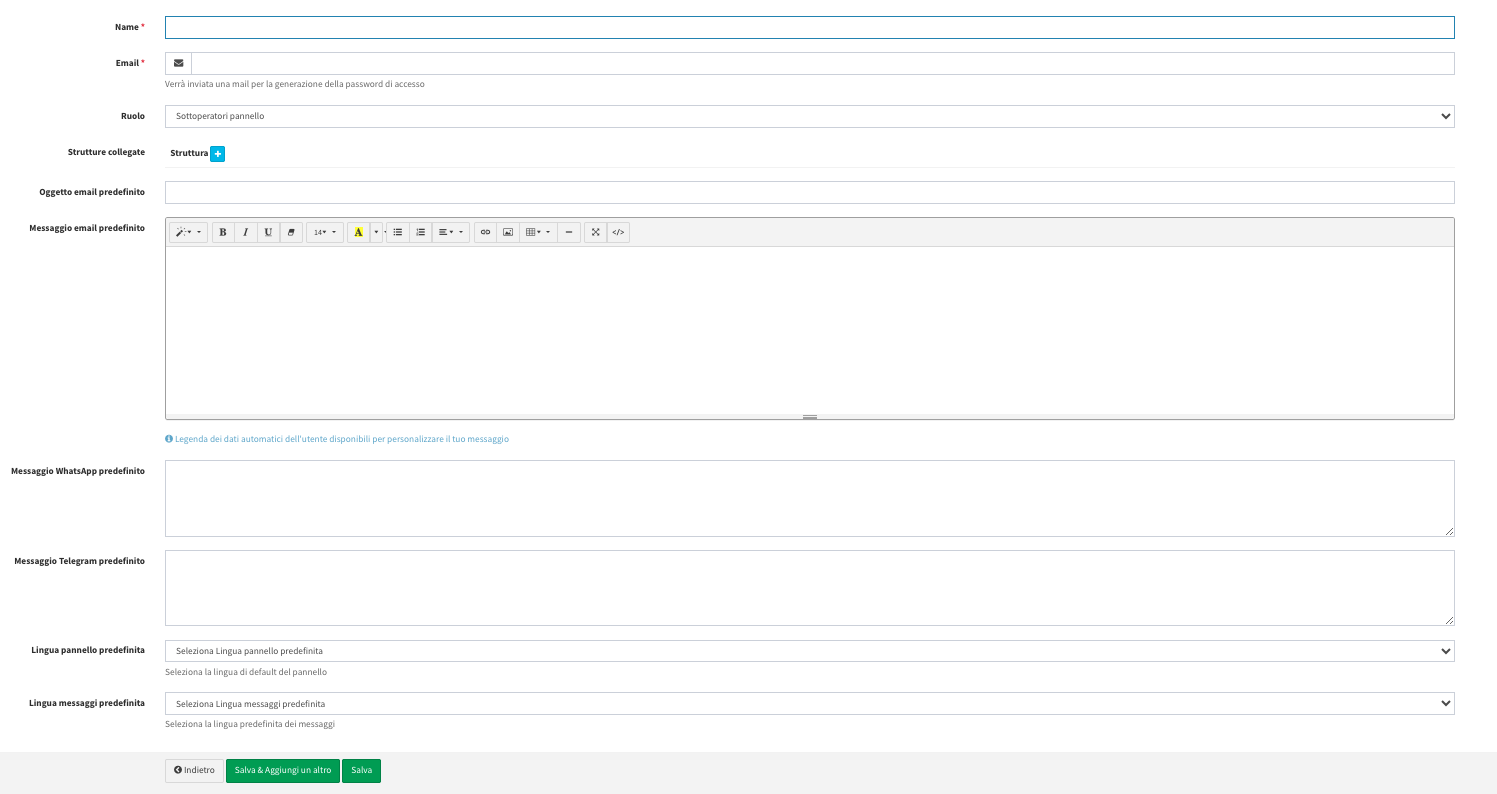
- Click “Save”.
To create the access password, follow the instructions sent via email.
For security purposes, you can also enable two-factor authentication. Once enabled, it applies to all operators on the panel.
In the operator list, next to each row, you can download the QR code used to enter the OTP in the Google Authenticator app.