User Group Features
The group feature of LabKey allows you to apply a single set of permissions to a group of users, simplifying management without the need to reset permissions for each individual user.
To access group management, click on “Groups” within the “Users” submenu.
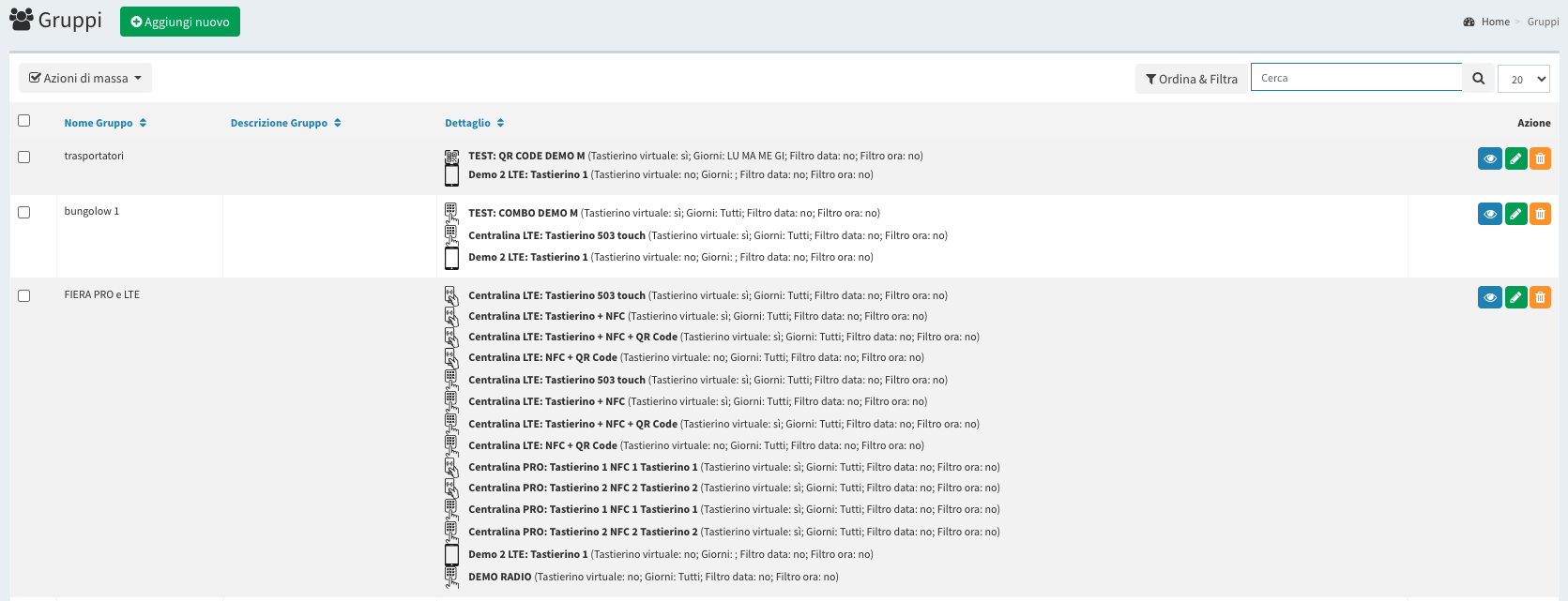
Adding a New Group
Click “Add New”.
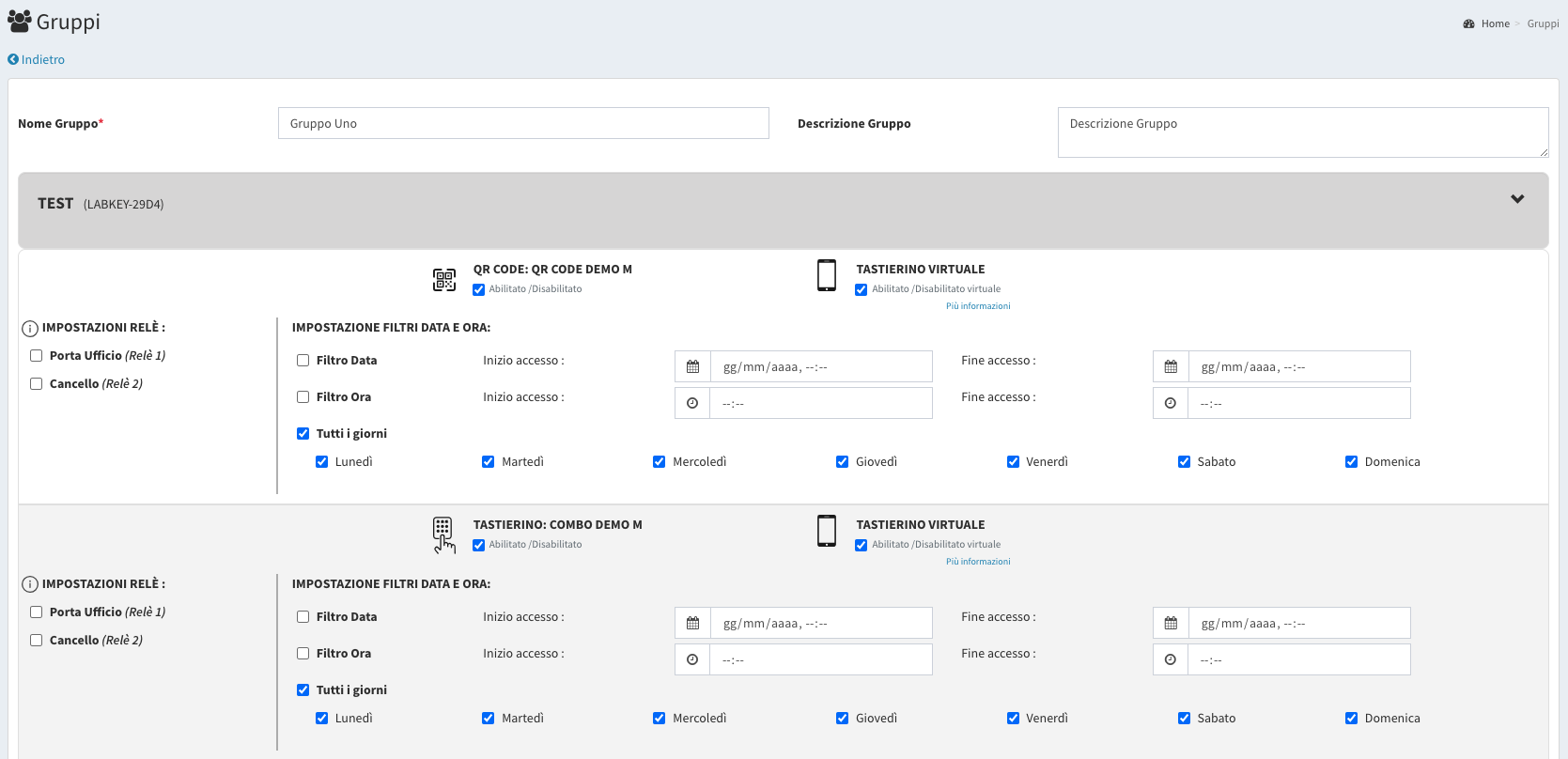
Fill in the required fields to give the group a name and a description.
Check the “Enabled” box under the desired reader model (e.g., QR Code). If the control unit has multiple readers connected, you will see a row for each technology of each reader.
ATTENTION: if your control unit is the Remote model, the available remote command to select corresponds to the number of relays on the control unit.
In each row, customize the access time for that reader. Select the relay you want to activate with that particular technology of that control device.
For each reader, select the entry permissions for the user. You can choose between date ranges, time ranges, days of the week, or combinations of these permissions.
After configuring the desired permissions, click “Save” to apply the changes.
Adding a User to a Group
- While editing the user profile, click on “Enable Group Features”.
- Check the box for the group you want to add the user to.
- Save the change.
From this moment on, the permissions previously set for the user will be replaced with those of the group.
Viewing the Users in a Group
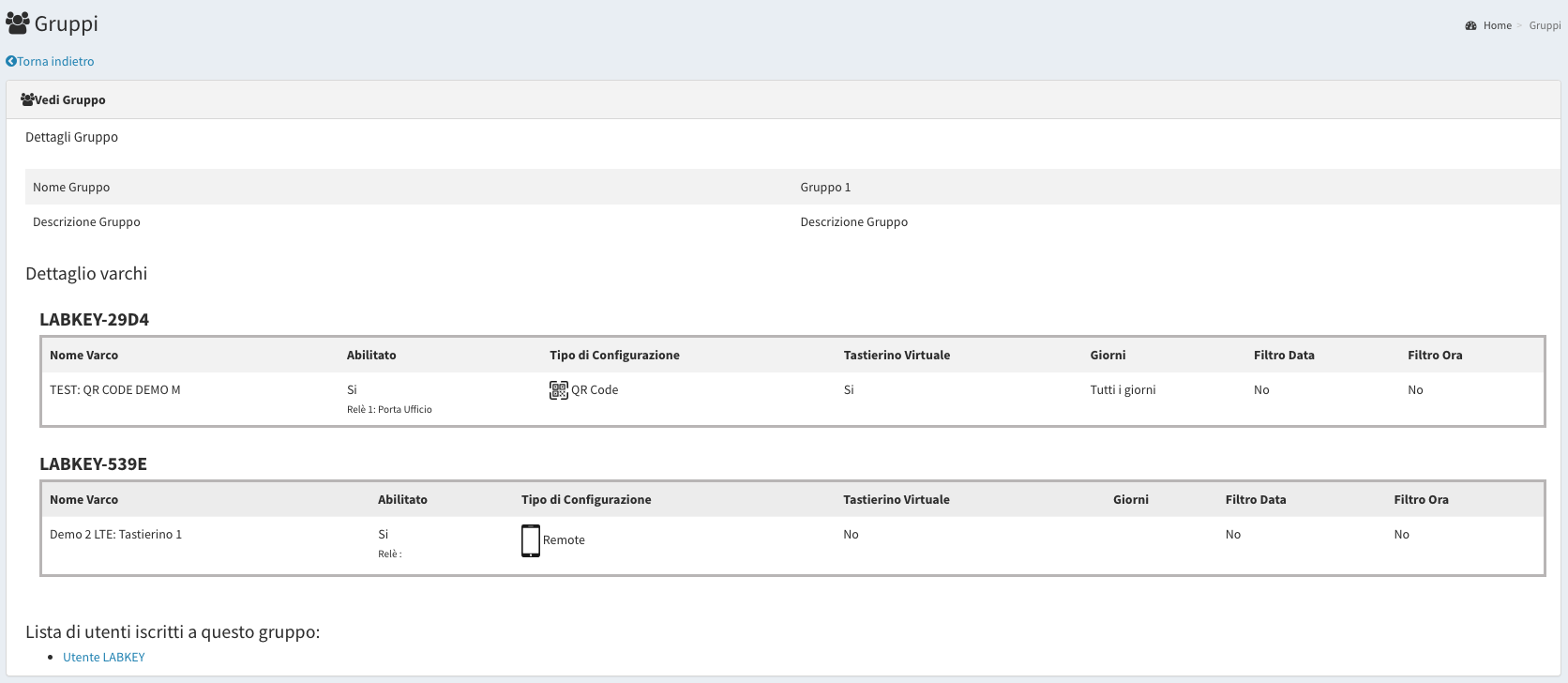
- Click the “eye” icon next to the group’s name.
- At the bottom of the page, there is the “List of users enrolled in this group”, with the option to be taken to the View section of the user’s details.
Special Cases
User Enrolled in More Than One Group
If a user is a member of multiple groups, it is possible to manage different permissions for specific periods.
Example:
Marco Bianchi is part of the groups:
- Swimming: gate opening from 06/14/2020 to 09/13/2020, only Thursday and Friday from 1:00pm to 3:00pm.
- Basketball: gate opening from 01/01/2020 to 12/31/2020, only Monday, Wednesday and Thursday from 8:30am to 12:00pm.
Marco Bianchi will have access with different permissions in specific periods:
For more on setting up access control for employees and staff in a business context, see Access Control System for Offices and Businesses.
01/01/2020 to 06/13/2020: Monday, Wednesday and Thursday from 8:30am to 12:00pm.
06/14/2020 to 09/13/2020: combination of the permissions of the two groups, therefore: Monday, Wednesday, Thursday and Friday, from 8:30am to 3:00pm.
09/14/2020 to 12/31/2020: Monday, Wednesday and Thursday from 8:30am to 12:00pm.