Basic, PRO, and LTE Control Units
Stand Alone management of the Basic, PRO, and LTE control units over the local Wi-Fi network: connecting to http://128.50.1.1, key list management, and additional options.
The Basic, PRO, and LTE control units have their own Wi-Fi access point, which lets you access the Stand Alone configuration without going through the cloud.
Connecting to the control unit
- Connect to the control unit’s Wi-Fi network, shown as LabKey-XXXX (where XXXX is the device’s serial number).
- Open your browser and go to http://128.50.1.1.
Key list management
Adding a numeric access code or a QR Code
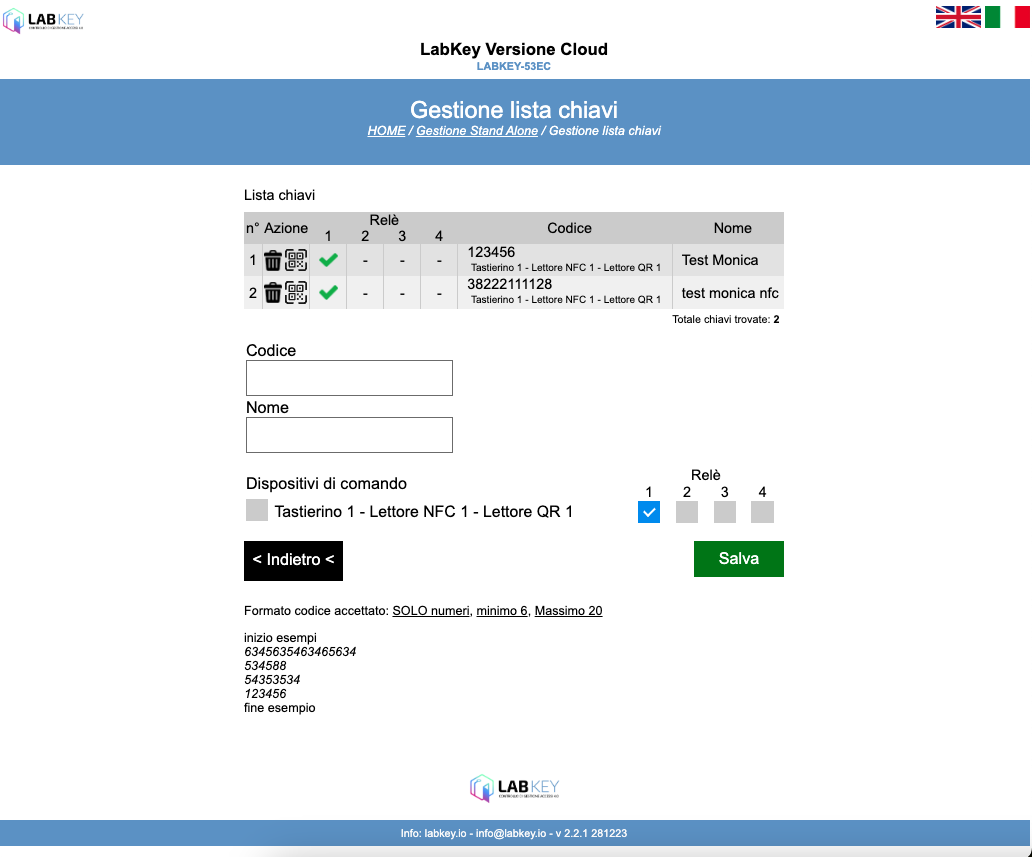
On the “Stand Alone Key List” screen:
- Go to “Code” and enter the access code.
- Go to “Name” to enter the username associated with the code.
- Enable the reader the user will use to gain access.
- Select the relay to activate.
- Save.
Click the trash can icon to delete the user, or the QR Code icon to view its code.
Adding an NFC card
- Swipe the card you want to add over the NFC reader.
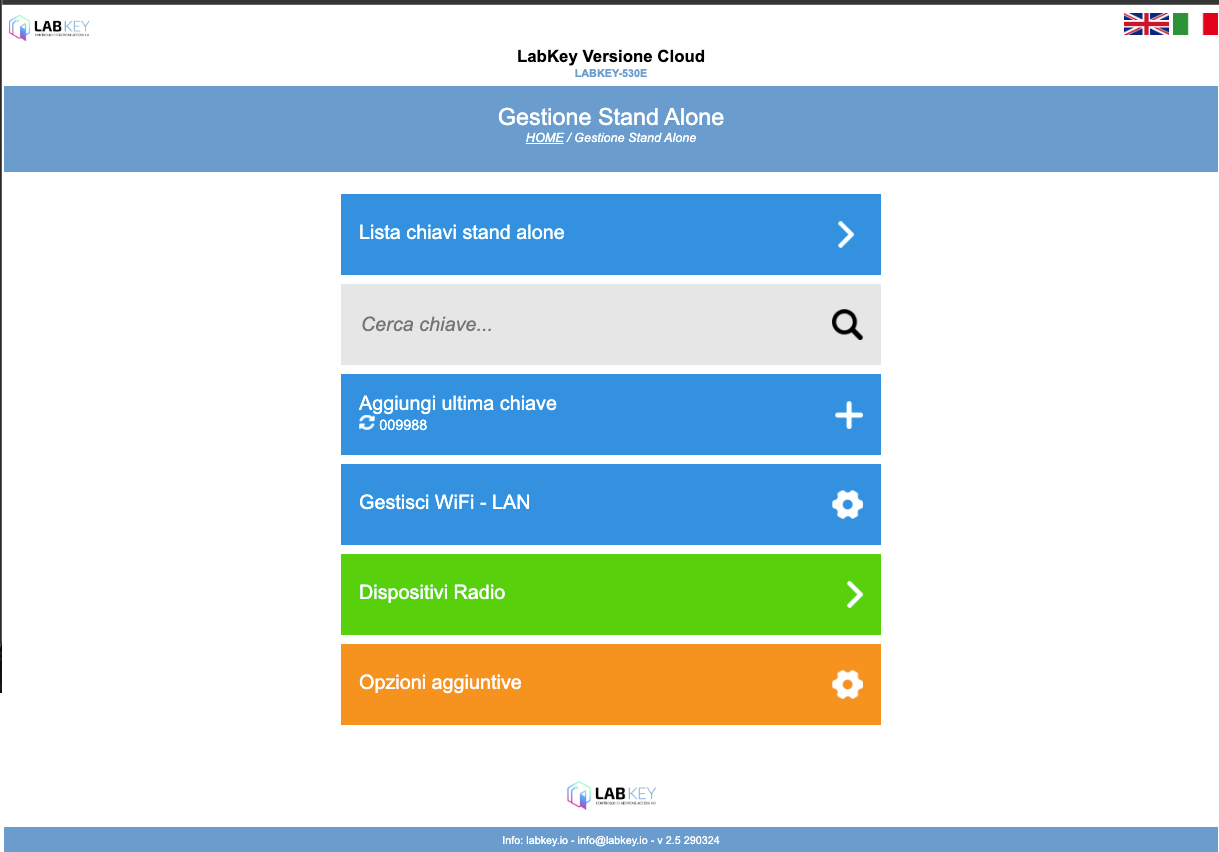
- Go to the Home screen.
- Click the “Add last key” button.
- Enter the username to associate with the card.
- Save.
Additional options
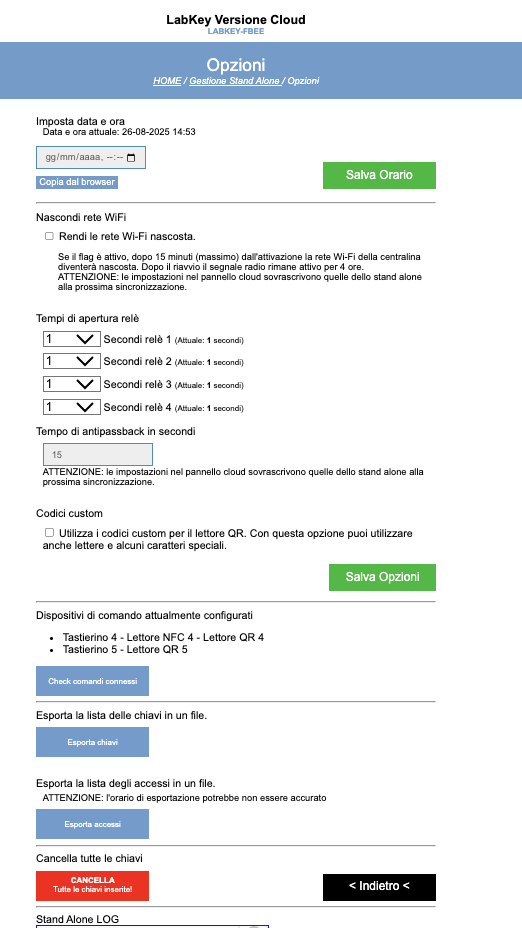
On the “Additional Options” screen you can:
- Set the system date and time, if they’re incorrect.
- Hide the control unit’s Wi-Fi network.
- Set the relay opening times.
- Set the Anti-passback function times (warning: every time this value is changed, the control unit restarts the service).
- Enable or disable custom codes.
- Search and view the configuration of command devices.
- Export the list of users.
- Export the access log.
- Delete all stored keys.