Enabling the Mobile App
The dedicated LabKey mobile app lets you access gates remotely or via BLE, right from the comfort of your smartphone. Follow the instructions below to enable remote and/or BLE opening through the mobile app, both on the control unit and for users, starting from the cloud Manage panel.
If instead you use the app to manage a Light control unit in stand-alone mode, go to this section.
Enable the Mobile App on the Control Unit:
- Go to “My LabKey” -> “LabKey” from the side navigation menu of the Manage panel.
- Locate the desired control unit in the list.
- Next to the control unit, you will find buttons:
- If you see the green “Enable mobile app” button, click it to activate the feature.
- If you see the red “Disable mobile app” button, it means the feature is already active. Click it only if you want to disable it.
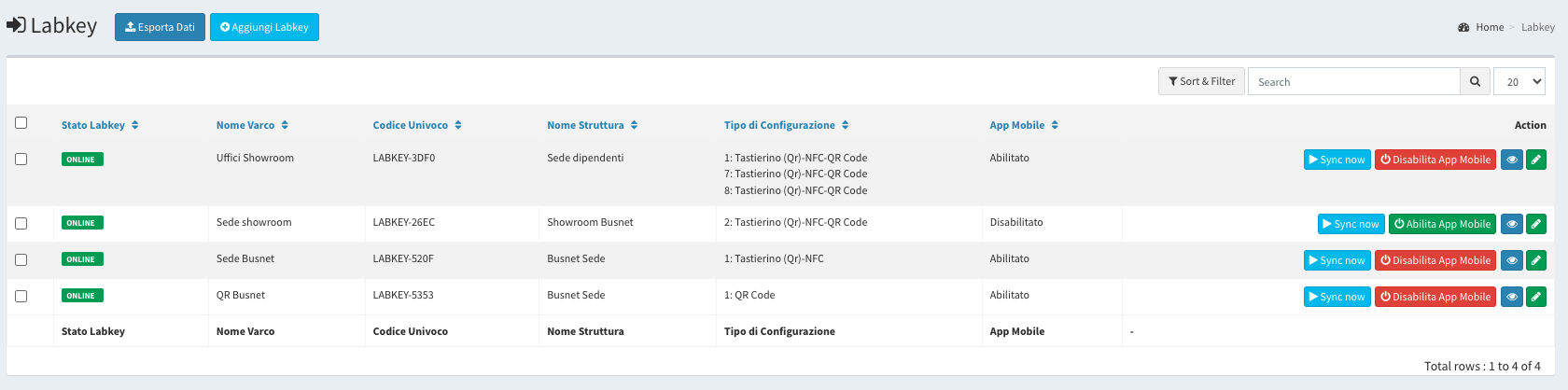
Enable Users to Use the Mobile App:
When creating a user (see the Adding a New User section for more information), you will be asked, for each LabKey, to enable the mobile app and, if applicable, opening via BLE (Bluetooth), using a checkbox.
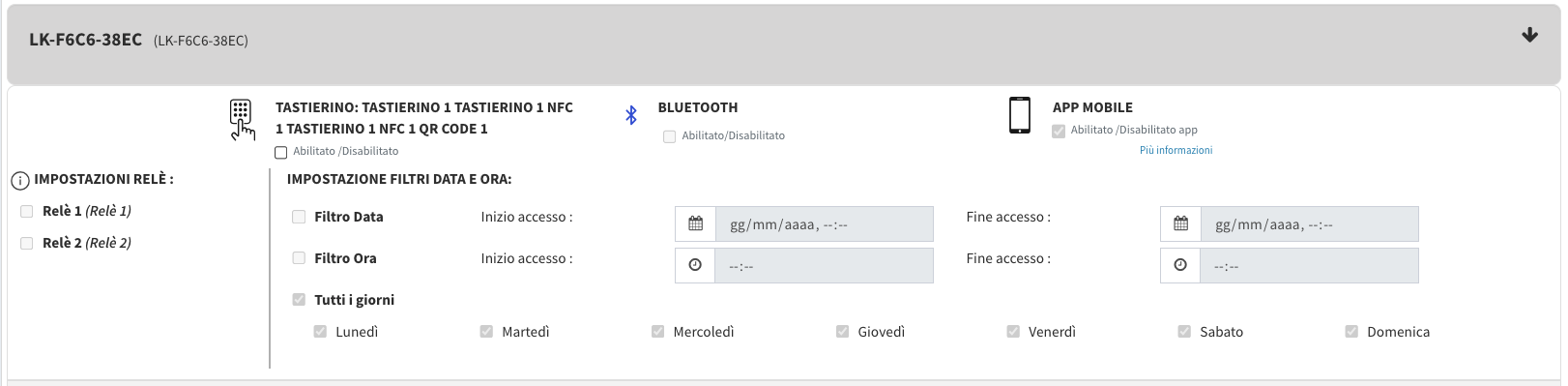
The same applies to the flags you set when creating a Group or a Template.
Important: To enable a user for the app, a phone number must be entered in their profile data.
Web Link for Remote Opening
Through the LabKey Manage panel, you can enable remote opening via Web Link: users can unlock the gate through an easily accessible link.
To use this type of remote opening, you need the Fast-URL, available for every user.
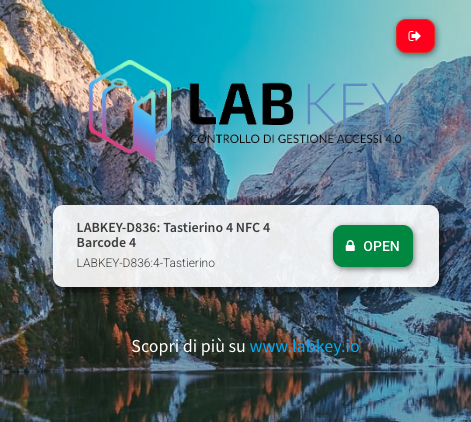
To install the app and start using it, see How to Install the App and How to Add or Download a Key.