Managing the Light Control Unit from the App
For the LabKey Light control unit, in stand-alone mode, key and settings management is handled directly through the mobile app, without going through the cloud Manage panel.
To access your control unit through the app, see the dedicated page for connecting to control units by model.
From the app’s main page, you can access the following sections:
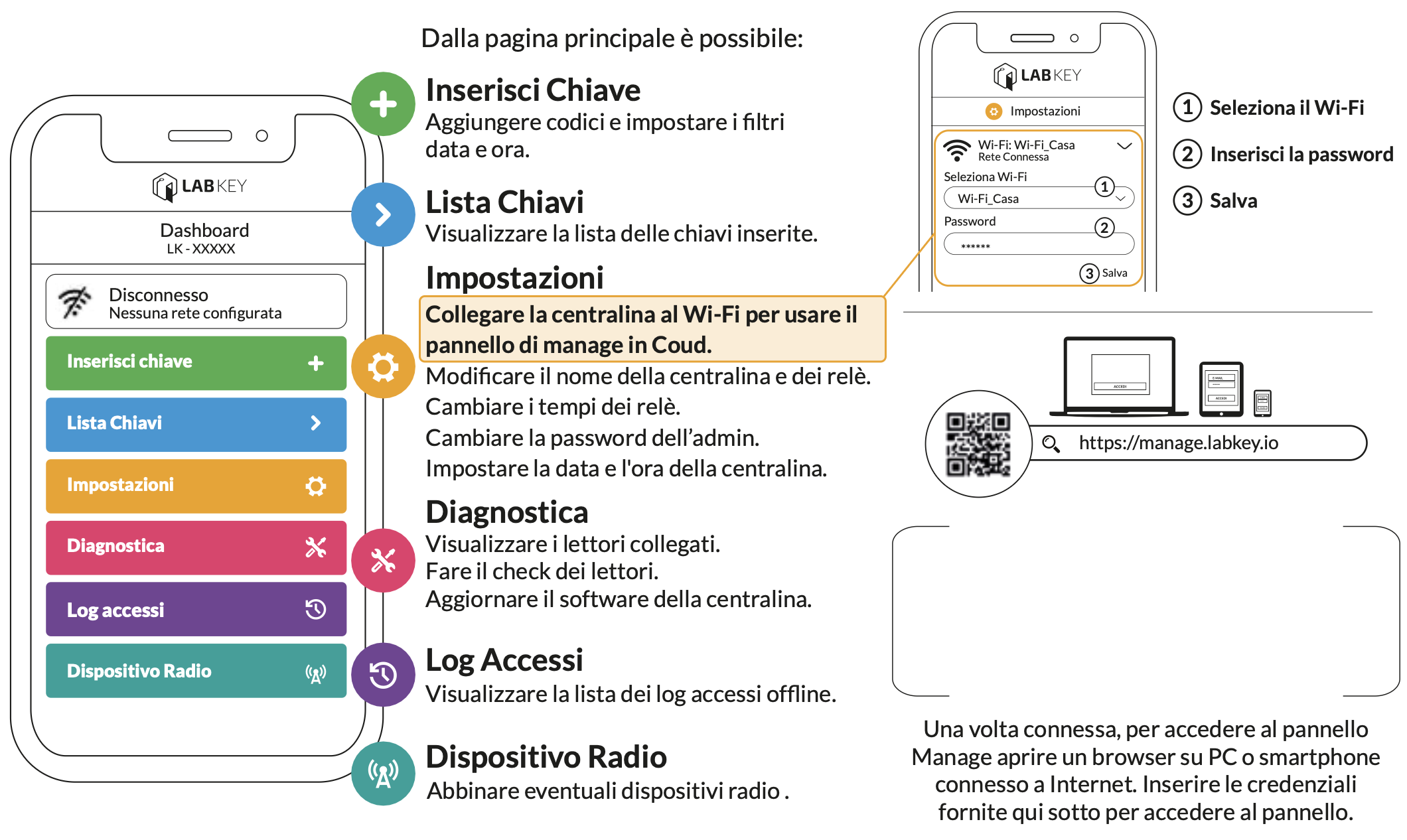
Add Key
Add a new key by defining:
- key name
- key code (you can also add the last code detected by the readers connected to the control unit)
- the relay to activate with that key
- the technology and reader you want to use
- the code’s validity days, plus an optional date and/or time filter
- then save the key
Key List
In this section you can view, share, or delete keys you have already added.
If you are looking for a key with a keypad code, you can easily copy it to the clipboard; if instead you want to view or share the QR code image, click the QR code icon next to the key.
Settings
- Connect the control unit to Wi-Fi, to use the Manage panel in the cloud.
- Change the name of the control unit and its relays.
- Change the relay opening times.
- Change the admin password.
- Set the control unit’s date and time and/or choose the desired time zone.
Diagnostics
- View the connected readers.
- Run the check procedure for the readers connected to the control unit.
- Update the control unit’s firmware.
- Restart the device.
Access Log
View the list of offline access logs.
Radio Device
Pair any radio devices by following the dedicated procedure for Mini Radio devices.
For the complete guide, see the Light control unit instruction manual.