How to Add or Download a Key
After installing the app, link the key to your user account to start opening gates remotely.
After installing the app, follow these steps to link it to your user account, depending on the type of opening you need to perform through the mobile app.
Remote Opening:
Note: you can use the app for remote opening (and the related device registration) only if the mobile app has been enabled in the Manage panel. See more details here: enabling the mobile app.
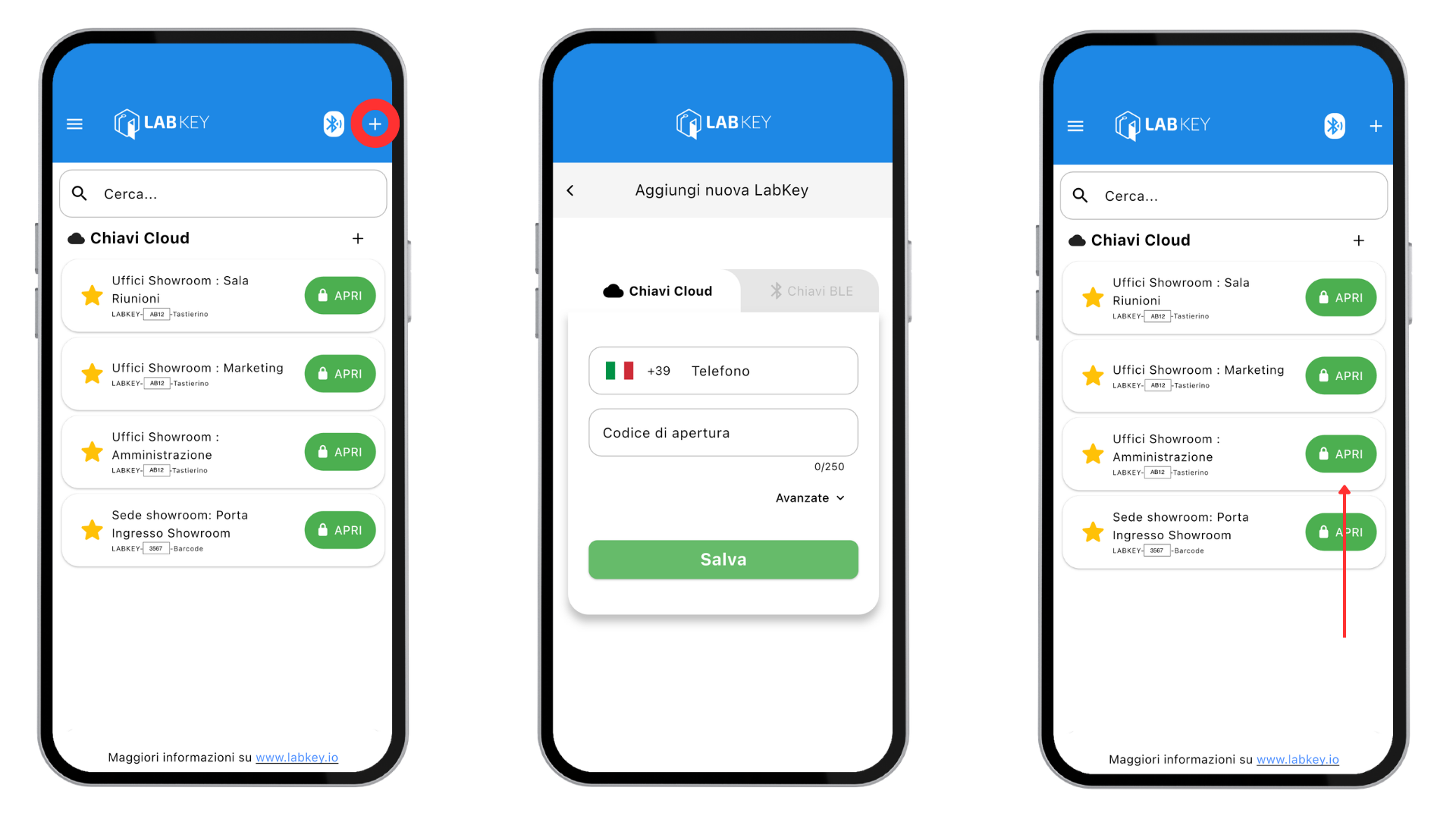
- Launch the app, tap the “+” symbol at the top right, and select the “Cloud Keys” window.
- Enter the phone number associated with your user account in the Manage panel and the associated NFC or keypad code.
- Save the data.
- The app’s main screen will display the list of all gates associated with your user account.
- Tap the green “Open” button next to the selected gate to unlock access remotely.
Local Opening via BLE:
Note: you can use the app for local opening via BLE only if you have the Light control unit model.
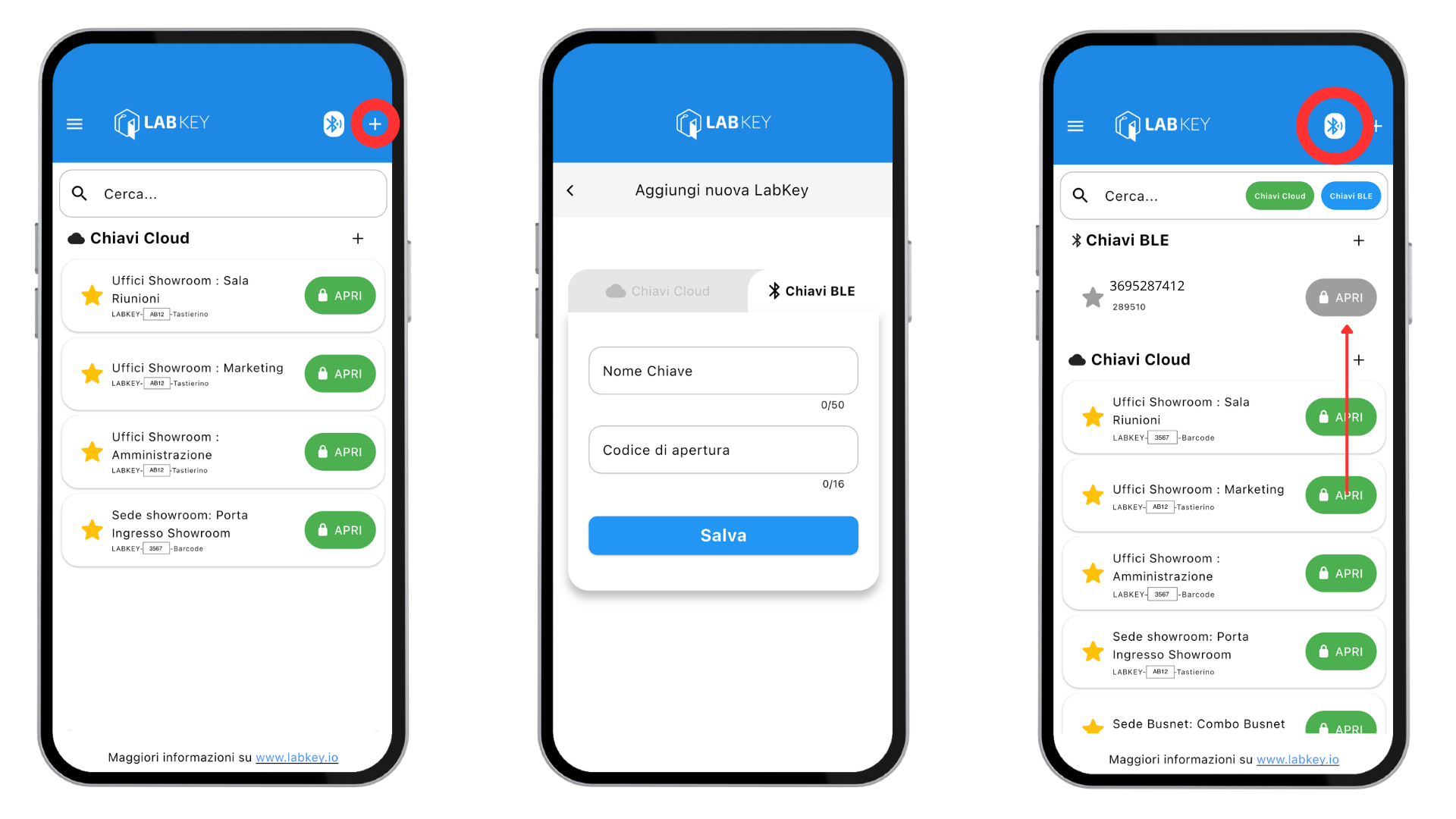
- Launch the app, tap the “+” symbol at the top right, and select the “BLE Keys” window.
- Enter the name of your key and the associated NFC or keypad code.
- Save the data.
- The app’s main screen will display the list of all gates associated with your user account.
- Tap the green “Open” button next to the selected gate to unlock access remotely.
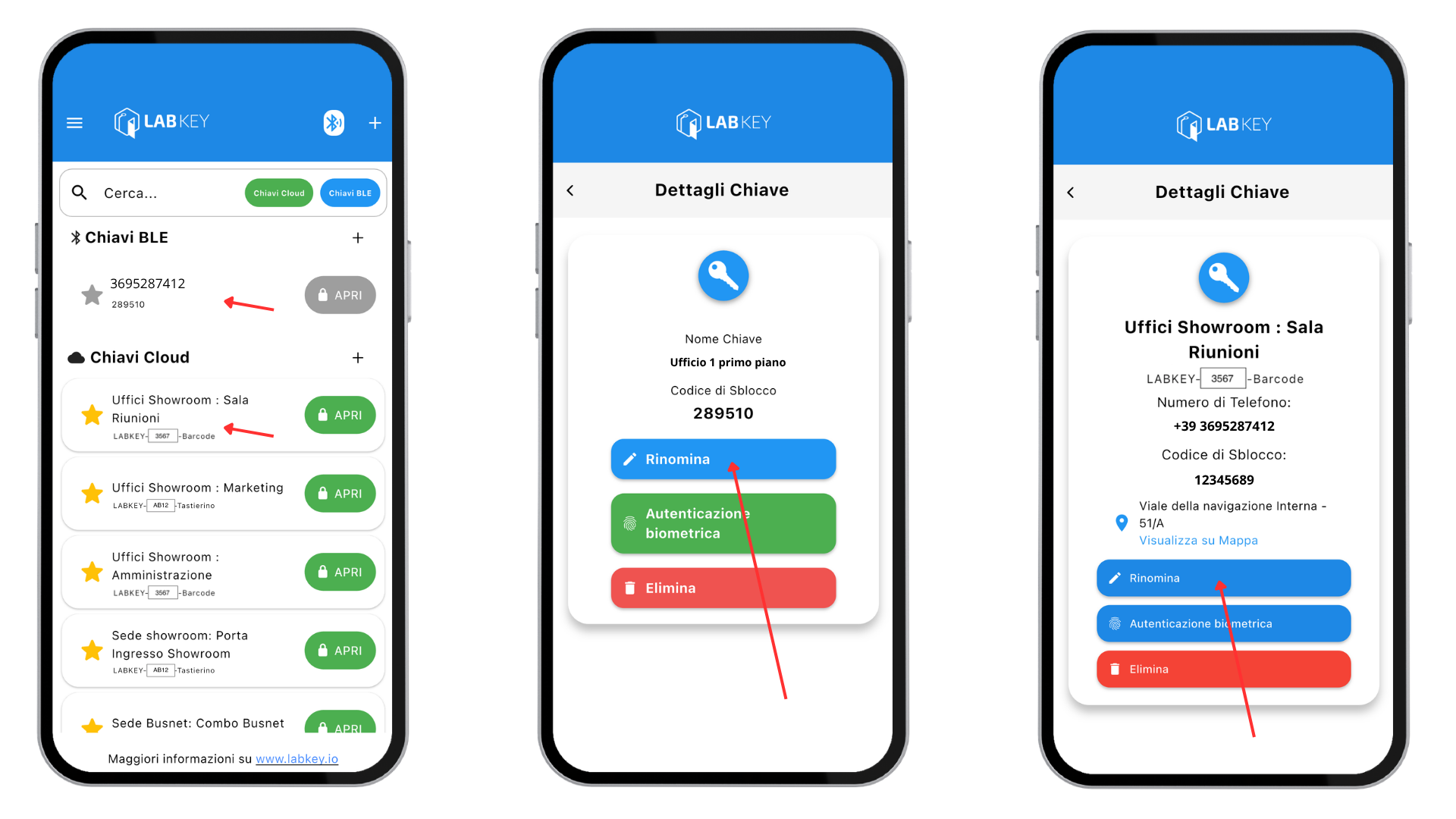
In either case, you can rename each gate on your device by tapping the LabKey name directly in the app.
Alternatively, you can receive an SMS, a WhatsApp message, or an email with a link to download everything automatically. See the dedicated Fast-URL section.